
How to Add a Mega Menu in the Shopify Dawn Theme
Dawn already has a mega menu. Nest your links in Content › Menus, then set the header's Menu type to Mega menu in the theme editor. Dawn's mega menu shows text links only, so pictures need theme code or an app.
This guide shows both ways. First the free built-in way, step by step. Then how to add a picture to each column with SuperMenu, a Shopify app we make that has a free plan.
What Dawn's mega menu can do
Dawn is Shopify's free theme. In its header settings you choose one of three menu types for computers:
- Dropdown: a short list opens under each top link.
- Mega menu: a wide panel opens under each top link, with your links in columns.
- Drawer: a side menu, like the one on phones.
The mega menu uses the same menu you build in Shopify. A top item can hold items under it, and those items can hold one more level, so there are three levels in all. In Dawn's mega menu the second level becomes the column headings and the third level becomes the links under each heading.
What it does not do: Dawn's mega menu has no pictures, no product cards and no labels. Every column is text. On phones, Dawn shows the same items in its side menu, in the same order.
For many stores this is enough. If you have a few collections with short names, text links are clear, quick to scan and free.
Turn on Dawn's built-in mega menu
1. Build the menu in Shopify
- In your Shopify admin, go to Content › Menus and open Main menu.
- Add a top item, for example Shop. Its link can be a collection, or
#if it should only open the panel. - Add the column headings under it, like Women, Men and Accessories. Drag each one a little to the right so it sits under Shop.
- Add the links under each heading the same way, one more step to the right.
- Press Save menu.
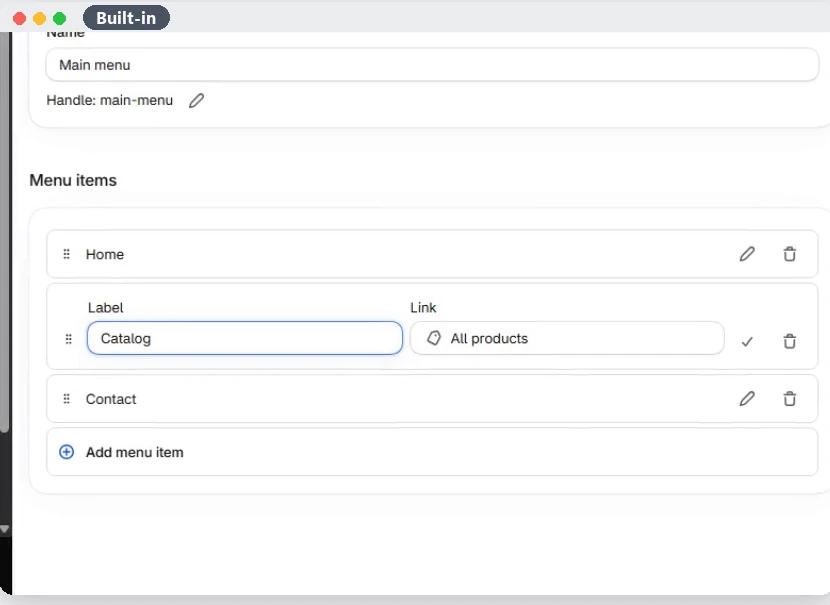
Shopify's help page Set up drop-down menus has the same steps in more detail, including how to do it in the Shopify app on a phone.
2. Switch the header to Mega menu
- Go to Online Store › Themes and press Customize on Dawn.
- Click the Header section on the left.
- Under Menu type, pick Mega menu.
- Press Save.
Open your store and point at a top item. The panel opens across the page with your headings and links in columns.
Can't find the setting? Older copies of Dawn may name it a little differently. Check your theme version under Online Store › Themes, and see Shopify's page on updating your theme.
Can you add pictures with code?
Yes, if you are comfortable editing Liquid. Dawn's mega menu is drawn by the file snippets/header-mega-menu.liquid. Each column heading in that file is a childlink. When a heading links to a collection, a developer can show that collection's picture with childlink.object.featured_image and Shopify's image_url filter.
Keep three things in mind before you do it:
- Work on a copy of your theme (Actions › Duplicate), not the live one.
- The change lives in that copy of the theme. When you move to a newer version of Dawn, you add it again.
- Phones use a different file, Dawn's menu drawer, so phones need their own change.
Shopify's guide to editing theme code explains backups and where each file is.
Add pictures to Dawn's mega menu with SuperMenu
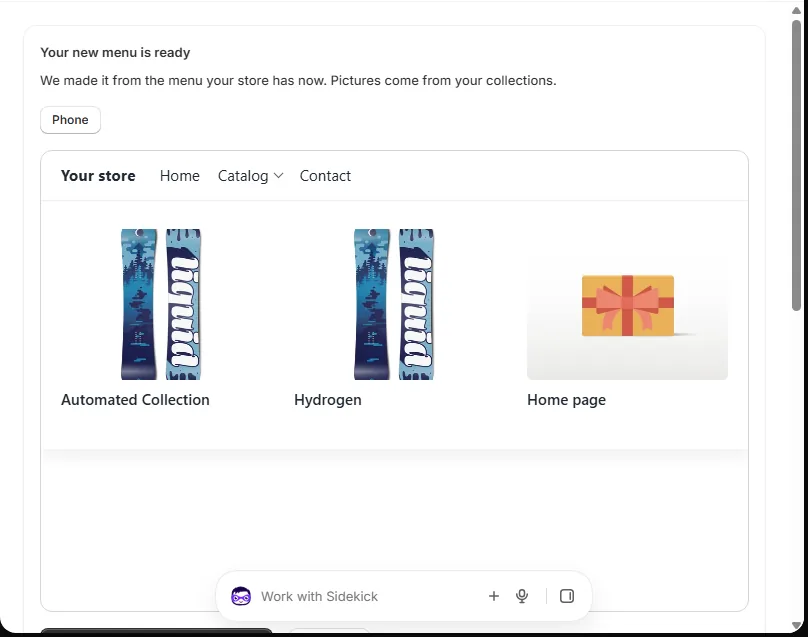
SuperMenu starts from the menu your store has now and turns it into a mega menu with a picture for each collection. It does not edit your theme code: it is an app embed you switch on in the theme editor. One menu is free, pictures included, with no mark of ours on your store.
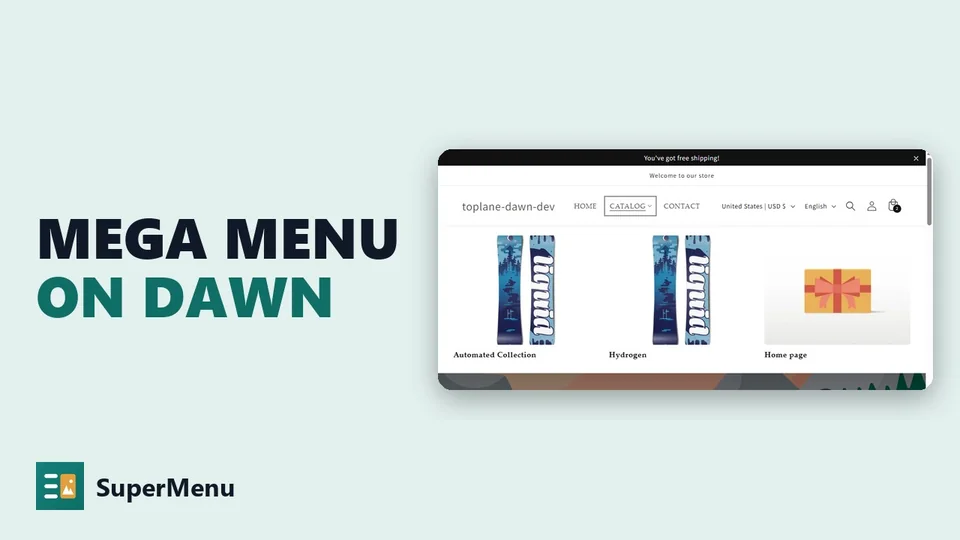 Play the video: Shopify Mega Menu with Images on the Dawn Theme (2026)
1. Install and open SuperMenu
Install SuperMenu from the Shopify App Store. The first time you open it, it reads your current menu and makes a new menu from it, with pictures from your collections. Nothing on your store changes yet.
2. Turn it on in Dawn
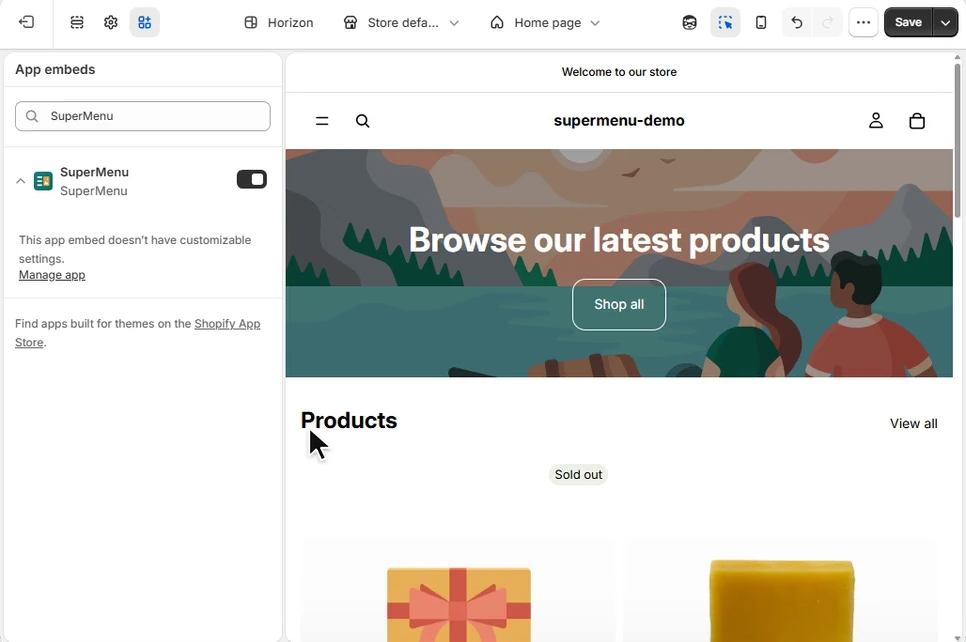
Press Turn on SuperMenu. Your theme editor opens with SuperMenu switched on under App embeds. Press Save in the theme editor.
3. Give each column a picture and its own links
Open your menu. Each top item can be Just a link, a List, or a Big panel with pictures. In a big panel each column has a name, a picture and its own links. Press Pick a collection to use that collection's picture, or Upload a picture to use one of your own.
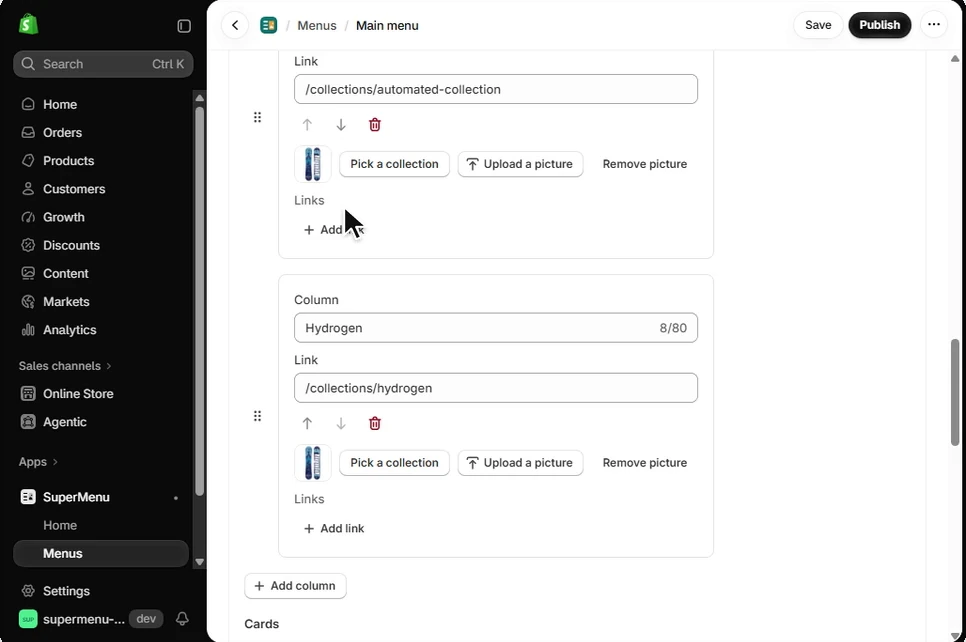
4. Check it on your store, then publish
Press Preview on my store. Your store opens with the new menu, and only you can see it. When it looks right, press Publish. On the Free plan, one menu goes live at once.
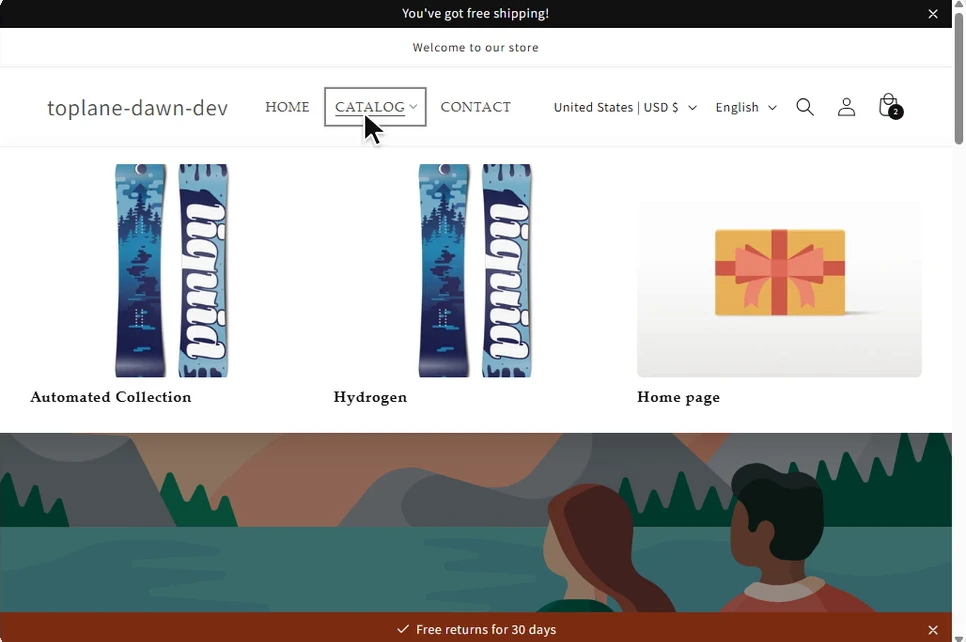
On phones, the menu opens in Dawn's side menu. You can give phones their own order and hide items there. Both are part of the Free plan.
What is free and what is Pro
| Free | Pro | |
|---|---|---|
| Menus on your store | One | More than one |
| Big panels with pictures | Yes | Yes |
| Order on phones, hide on phones | Yes | Yes |
| Labels like NEW or SALE | No | Yes |
| Cards in a panel | Picture cards | Picture, collection and product cards |
| Sale menus on set days, names in each language, past versions | No | Yes |
Pro is $9.99 a month or $99.90 a year, and $19.99 a month on Shopify Plus. The first time you use a Pro part, Shopify asks you to approve Pro, and the first 30 days are free. The full list is on Plan and trial.
Questions people ask
Does Dawn have a mega menu?
Yes. In the theme editor, open the Header section and set Menu type to Mega menu. It shows your second and third menu levels as text columns.
Can Dawn's mega menu show images?
Not on its own. You can add pictures by editing the theme code, or with an app such as SuperMenu, which adds a picture to each column without code.
Will SuperMenu remove my Dawn menu?
No. Your Dawn menu stays in your theme. SuperMenu hides it while its own menu shows. Turn SuperMenu off in your theme, or remove the app, and Dawn's menu comes back.
Will a mega menu make my store slow?
SuperMenu's menu comes with your page, and its small script loads after the page. If you upload a picture, it is kept in your own Shopify files.