Get started
You get a menu in about one minute. Nothing changes on your store until you press Publish.
1. Open SuperMenu
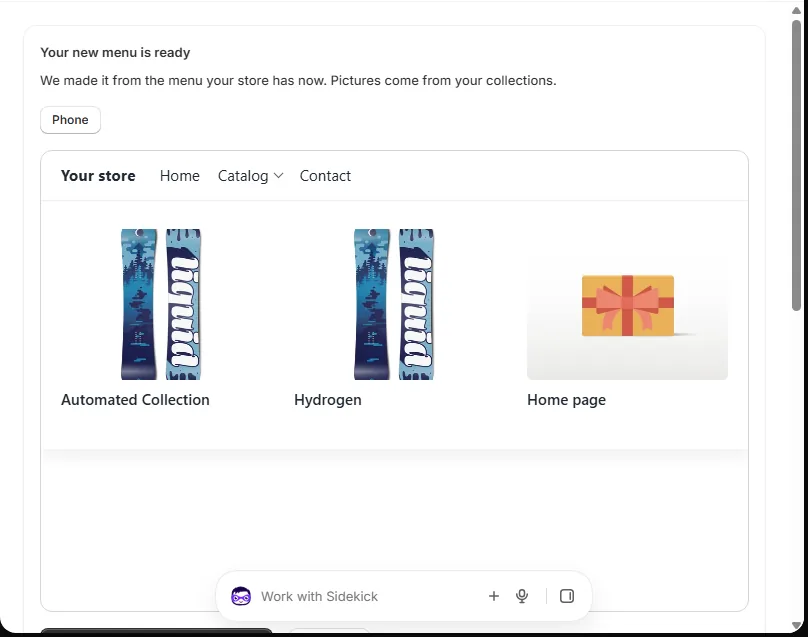
We read the menu your store has now. We make it into a new menu with pictures from your collections.
2. Turn it on in your theme
Press Turn on SuperMenu. Your theme opens with SuperMenu switched on. Press Save in the theme.
3. Look at it on your store
In the menu page, press Preview on my store. Only you can see this. Your shoppers still see your old menu.
4. Publish
Press Publish. One menu is free, so it goes live at once.
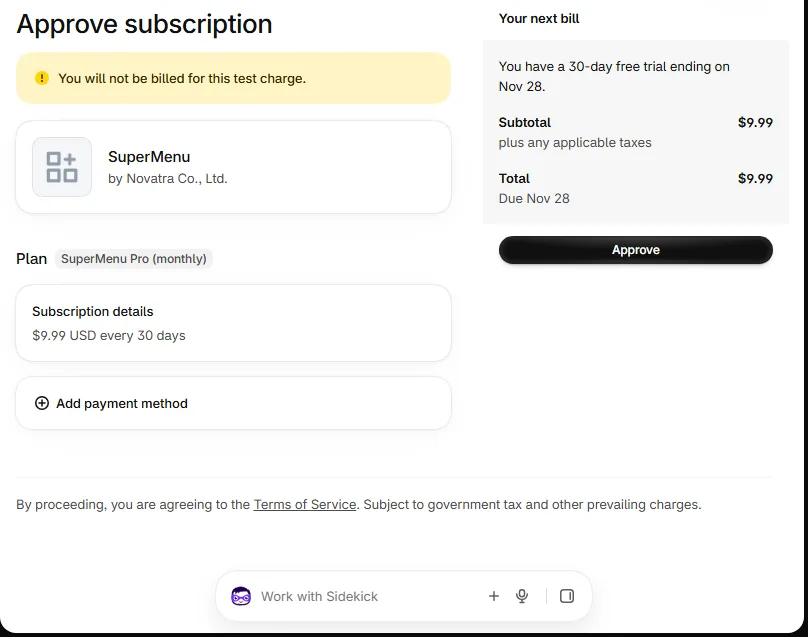
Does your menu use a Pro part, like a second menu or labels? Then Shopify asks you to approve Pro. You pay nothing for 30 days.