
Is There a Free Mega Menu App for Shopify? What to Check First
Yes. Several mega menu apps on the Shopify App Store have a free plan, and your theme may already include a free mega menu. Before you install anything, check what your theme does, then compare free plans on six points: menus, branding, pictures, phones, how the app attaches to your theme, and what happens when you stop.
We make one of these apps, SuperMenu, so we say clearly below what its free plan has and what it does not.
First, check what your theme already does
You may not need an app at all.
- Dawn and other themes in its family have a built-in Mega menu setting in the header. It shows your links in columns, as text. See How to add a mega menu in Dawn.
- Horizon goes further: its menu block can show collection images, featured products or featured collections in the panel. See Shopify Horizon mega menu.
- Some paid themes have their own mega menu with pictures. Look in the theme editor under Header before you add an app.
The menu itself is always free. You build it in Content › Menus, and Shopify allows up to three levels. If your store has a few collections with short names, text links in your theme's own menu are often all you need.
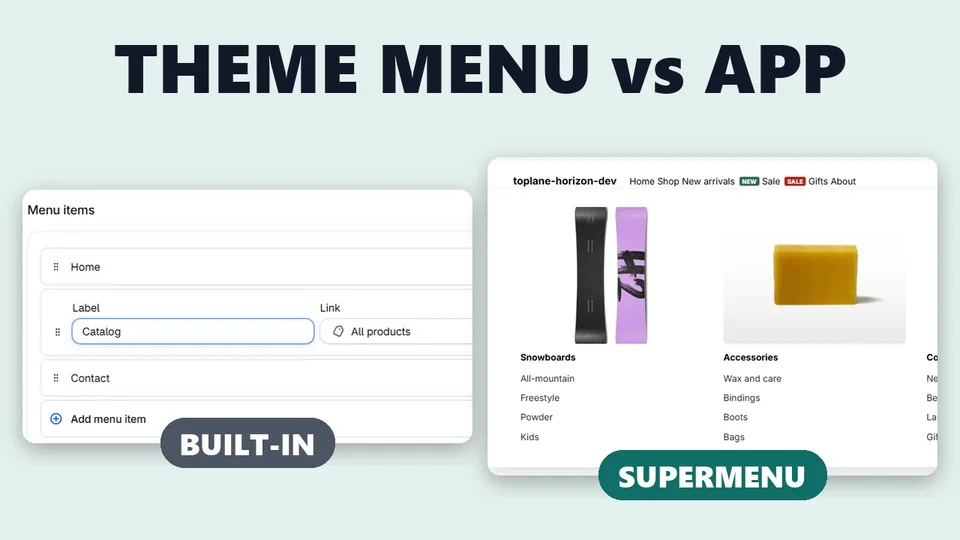 Play the video: Shopify's Built-in Menu vs a Mega Menu with Pictures (2026)
Six things to check in a free plan
A "free" label on the App Store means the app has a plan that costs nothing. What that plan includes is up to each app. These are the points that decide whether it fits your store.
- How many menus. Most free plans cover one menu. That is usually the main menu in your header, which is the one that matters most.
- The app's mark on your store. Some free plans add a small credit or logo to your menu. Check the plan list or the app's screenshots.
- Pictures. A mega menu without pictures is close to what many themes give you for free. Check that picture panels are in the free plan, not only in a paid one.
- Phones. Many shoppers browse on a phone. See how the menu opens there, and whether you can change the order or hide items on phones.
- How it attaches to your theme. Shopify apps can add an app embed or an app block that you switch on and off in the theme editor, or they can change your theme code. An app embed is easy to turn off, and nothing stays behind in your theme.
- What happens when you stop. Read what the app says about cancelling a paid plan and about removing the app: what stays on your store, and when your data is deleted.
Also check the app's privacy page to see what store data it reads.
What SuperMenu's free plan includes
SuperMenu's Free plan has no time limit. It includes:
- One menu on your store, with no mark of ours.
- As many items as you like, as lists or big panels.
- Picture panels, a separate order on phones, and hiding items on phones.
- Copying your current Shopify menu, or a menu from another menu app.
- A daily check that your menu is showing, a count of menu clicks, and a weekly note.
Pro adds more menus, past versions you can bring back, sale menus that show on set days, names in each language, collection and product cards, labels like NEW and SALE, and your own CSS.
| Free | Pro | |
|---|---|---|
| Price | $0, no time limit | $9.99 a month or $99.90 a year |
| Menus on your store | One | More than one |
| Pictures in panels | Yes | Yes |
| Phone order and hiding on phones | Yes | Yes |
| Labels, product and collection cards | No | Yes |
| Sale menus, languages, past versions, your own CSS | No | Yes |
On Shopify Plus, Pro is $19.99 a month. The first time you use a Pro part, Shopify asks you to approve Pro, and the first 30 days are free. You can cancel in the app at any time.
Set up the free plan in four steps
- Install SuperMenu from the Shopify App Store. It reads your current menu and makes a new one, with pictures from your collections.
- Press Turn on SuperMenu. Your theme editor opens with SuperMenu on under App embeds. Press Save.
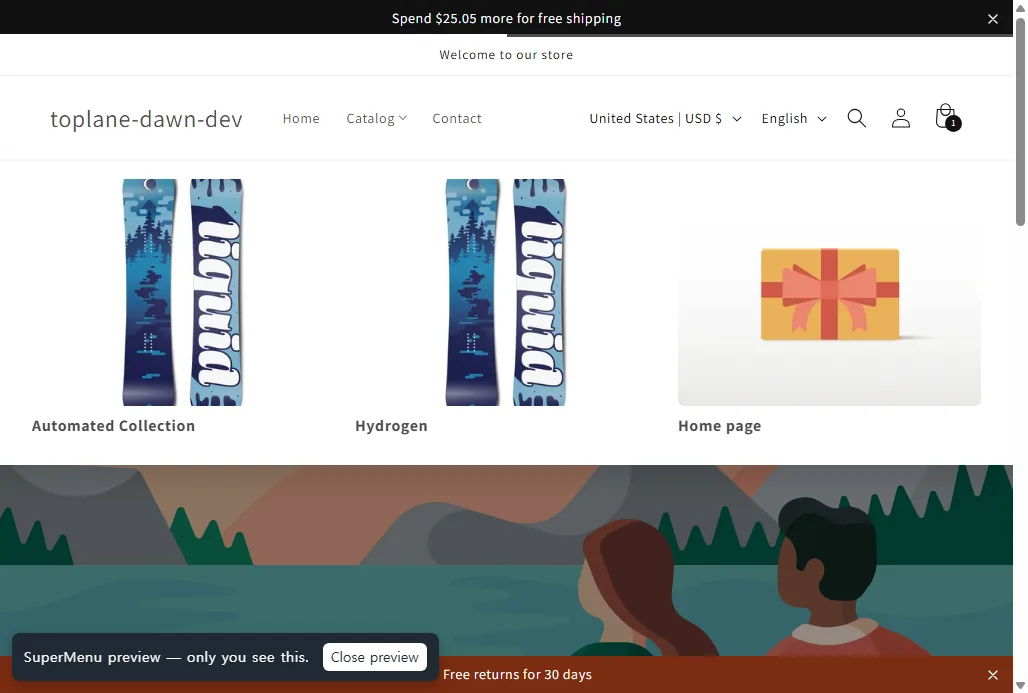
- Press Preview on my store. You see the new menu on your store. Your shoppers still see the old one.
- Press Publish. One menu is free, so it goes live at once.
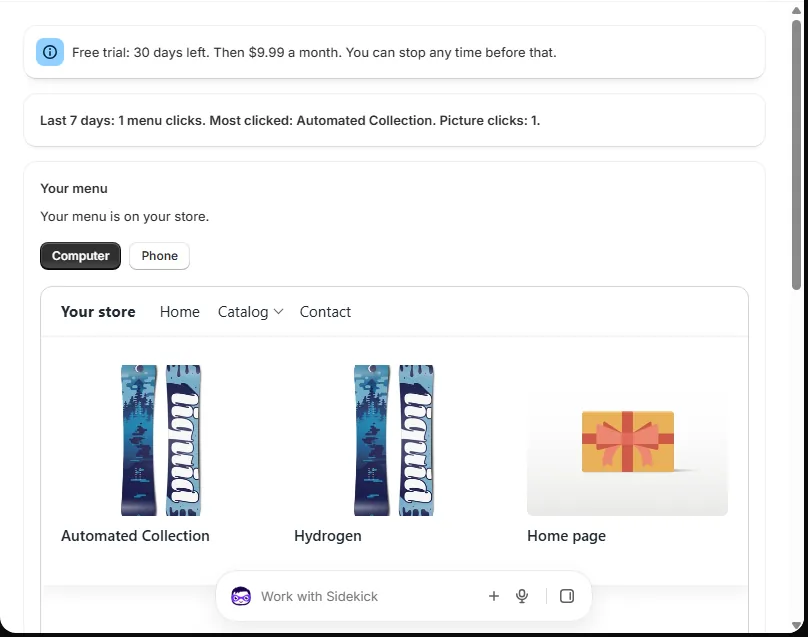
After it is live, SuperMenu's home page shows that your menu is on your store, and how many times each link was pressed in the last 7 days.
Step-by-step help with pictures is in the SuperMenu help center.
When an app is not worth it
Be honest with yourself about what the menu needs to do. If you sell one kind of product with a handful of collections, a theme's own menu is free, fast and needs no setup. An app makes sense when a big menu is hard to scan as text, when pictures help shoppers pick a collection, or when you want things themes do not offer, like a separate phone order or a menu that changes on the first day of a sale.
Questions people ask
Is SuperMenu free?
Yes, for one menu. The Free plan has picture panels and phone settings, no time limit and no mark of ours. Pro costs $9.99 a month, and the first 30 days are free.
Does the free plan add a watermark?
No. The Free plan puts one menu on your store with no mark or credit from us.
What happens if I cancel Pro?
You move to Free. Your newest menu stays on your store. Its cards, labels, dates, languages and CSS stop showing. We keep your menus, and they come back at once if you pay again.
What happens when I remove the app?
Your menu leaves your store at once and your theme's own menu shows again. We delete your data 48 hours later. Pictures you uploaded stay in your Shopify files.